
 Become A Jaguar
  Request Info
  Apply
Apply  Get Game Tickets
 Zoom Phone Deployment
Where to Find Accurate Information
Texas A&M University–San Antonio is transitioning to Zoom Phone as part of a campus-wide effort to modernize our phone system. The project is being deployed in phases to minimize disruption and ensure each area receives clear communication, training, and support before any changes.
The Zoom Phone deployment is managed by the Enterprise Project Management Office (ePMO) in coordination with Information Technology Services. Timelines, eligibility, and phone options (softphone or desk phone, where operationally required) may vary by department and phase.
To help ensure accurate and consistent information:
• Have questions about the project? please email ITSPMO@tamusa.edu and we will reply to you as soon as possible.
• Technical support or issues: Submit a helpdesk ticket at
https://tamusa.atlassian.net/servicedesk/customer/portal/28/group/61/create/399
• Official updates, guides, and FAQs: Refer to the resources on this page
If you hear conflicting information or are unsure how the project applies to your area, please rely on the resources here or contact the project lead directly. If it hasn’t been shared through ITS or the ePMO, it may not be final or accurate.
Thank you for helping us keep campus communication clear and informed as we move through this transition.
What are my options regarding this Zoom transition?
Softphone (Highly Recommended)
Here’s what you get:
💻 1. Work from anywhere
A softphone runs on your computer or mobile app, so you can take calls wherever you have internet. Whether you're at home, traveling, or in the office, your business number stays with you.
💰 2. Lower costs
No need to buy, maintain, or replace physical desk phones. You also reduce departmental costs since everything runs through the cloud.
🔄 3. Easy setup & scaling
Adding a new user is quick—just assign a license in Zoom. No wiring, no hardware installation. This makes scaling your team much easier.
📱 4. Seamless device switching
You can move between your laptop, smartphone, or tablet without dropping calls. This is especially useful for hybrid work setups.
🧩 5. Built-in integrations
Zoom softphones integrate directly with:
- Meetings & video calls
- Team chat
- Voicemail & call recording
Everything lives in one platform instead of juggling multiple tools.
🔒 6. Security & reliability
Zoom Phone uses encrypted connections and benefits from Zoom’s global cloud infrastructure, helping ensure stable and secure communications.
📊 7. Advanced features
Softphones typically include:
- Call forwarding & routing
- Voicemail transcription
- Auto attendants (virtual receptionists)
- Analytics & call reporting
These features are often more advanced than what traditional phones offer.
⚡ 8. Faster updates
New features roll out automatically—no need to upgrade hardware or firmware manually.
Physical Phone
💸 1. Higher upfront and ongoing costs
You’ll need to:
- Purchase the hardware
- Maintain and possibly replace devices
- Manage inventory
- All purchases will come from departmental funding
🧑💻 2. Less flexibility
Hardphones are tied to a physical location. Unlike softphones:
- You can’t easily take calls on the go
- Remote work becomes less seamless
⚙️ 3. Setup and management overhead
Even though Zoom supports provisioning, you still have:
- Device setup
- Firmware updates
- Network configuration (VLANs, PoE, etc.)
🔄 4. Limited integration compared to softphones
Hardphones don’t integrate as deeply with:
- Chat
- Video meetings
- Screen sharing
They’re primarily voice-first devices.
🪫 5. Less future-proof
Communication trends are moving toward app-based, unified platforms. Investing heavily in hardware can limit agility long-term.
Why TAMUSA Is Promoting Softphone First
Why TAMUSA Is Promoting Softphone First
Using Zoom Phone as a softphone provides:
- Flexibility to work from campus or remotely
- Easier call management and voicemail access
- Faster onboarding without physical hardware
- Consistent experience across devices
- Reduced reliance on physical and legacy phone hardware, minimizing maintenance, replacement cycles, and on‑site dependencies
- Improved resilience and continuity during device refreshes, office moves, or space changes—users can sign in and make calls from any TAMUSA‑issued device
- Supports the university’s future technology direction, aligning with cloud‑first, mobile‑friendly, and scalable services
- Lower long‑term operational overhead, as fewer physical phones and on‑premises components require support
Your staff/faculty Jaguar account gives you access to Zoom accounts through Texas A&M University-San Antonio.
Zoom is a video conferencing tool that the university uses for virtual meetings, synchronous and asynchronous instruction, and more. This page is dedicated to sign-in information, how-tos, helpful information, and downloads for zoom.
Zoom
Zoom offers the following features:
- Creating, scheduling, and hosting meetings or Webinars
- Waiting and breakout rooms
- Livestreaming
- Meeting chat
- Screen sharing
- Recording
- Whiteboard tools
- And more!
Downloads
Download the Zoom Outlook Plugin by logging into your Zoom web portal and clicking on Meetings in the left-side menu. Select download under Microsoft Outlook Plugin at the bottom of the page.
How do I log into zoom?
Let's get you started
Logging into Zoom:
There are two ways to log in and access your Zoom account, the web portal and the Zoom application
1. To login to TAMU-SA's Zoom portal, navigate to https://tamusa.zoom.us/

2. From here, you will click the Sign-In button.
3. It will then take you to the Jagwire sign-in page. Log in with your Jaguar account credentials.

4. After logging in, you will be brought to your dashboard. From here you can manage scheduled meetings, view recordings, and change settings. Please note: your layout may look slightly different from what is pictured here.

5. To log in to the Zoom application, navigate to and open the Zoom app on your device.
6. Once the Zoom app opens, select Sign In.

7. When the next sign-in window appears, select SSO.

8. On the Sign in with SSO page, type in “tamusa” and the extension on the right should say “.zoom.us”
9. Once you continue, it might prompt you to log in to Jagwire if you are not already signed into the web portal.
10. Next, it will open your web browser and prompt you to open Zoom. Select Open.

11. The Zoom app will now be launched. You will be brought to the dashboard. Here you can also manage meetings, access the calendar, join meetings, and change settings.

Once you are logged into Zoom, it is good to know how to schedule your meetings with the appropriate settings and configurations. Listed below are some links that include step-by-step instructions on how to do so.
Frequently asked questions (FAQ)
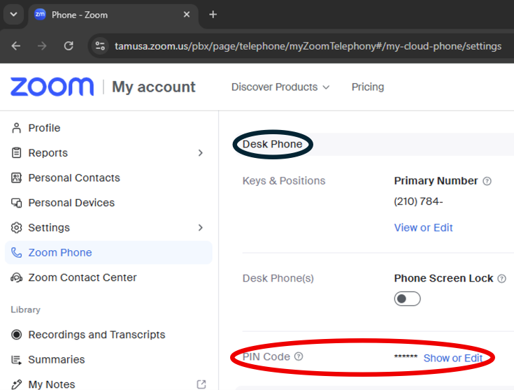
Quick Guide: Voicemail in Zoom Phone
- Click, Zoom Web Portal.
- Sign into using your jagwire log in credentials
- Scroll down till you see “Desktop Phone”.
- Next to PIN Code choose “Show or Edit”
Access Voicemail from Poly Desk Phone
- Press the Voicemail icon, indicated by number 12 on the diagram:

How to start Zoom when Windows starts
To enable Auto-start Zoom Workplace:
- Sign in to the Zoom Desktop app.
- Click your profile picture, then click Settings.
- Click General.
- Under Zoom Workplace App, toggle on
 Auto-start Zoom Workplace.
 - (Optional) Click the Start silently check box.
What Is Zoom Phone?
Zoom Phone is TAMUSA’s cloud‑based phone system that allows you to make and receive calls using the Zoom Workplace app on your computer or mobile device—no physical desk phone required.
Zoom Phone integrates calling, voicemail, contacts, and call history into the same Zoom app many users already know for meetings.What You Need to Get Started
To use Zoom Phone, you will need:
- A TAMUSA Zoom account with Zoom Phone enabled
- The Zoom Workplace desktop app (Windows or macOS) or Zoom mobile app (iOS/Android)
- TAMUSA SSO login
- To launch Zoom Workplace on Windows: use the Windows Search bar (Start menu) and type Zoom Workplace — the app is pre‑installed on all TAMUSA‑issued devices
Once your account is enabled, the Phone tab will appear in your Zoom app.
Zoom Phone Basics (Softphone)
Making a Call
Using the Zoom Workplace app, you can place calls in several ways:
- Dial a number using the on‑screen keypad
- Search for a colleague by name or extension
- Click‑to‑dial from saved contacts
All calling is handled directly in the Zoom app—no additional software is required .
Receiving a Call
Incoming calls appear as notifications in the Zoom app.
Depending on your status, you can:
- Answer the call
- Decline the call (routes to voicemail)
- Send the call to voicemail
If you are already on a call, Zoom Phone provides options to manage multiple calls .
Voicemail
Zoom Phone voicemail is built into the Zoom app:
- Voicemails appear in the Voicemail tab
- Messages can include audio and transcription
- Voicemail is synced across desktop and mobile devices
Users can listen to, manage, and delete voicemail messages directly from Zoom .
Call History
Your Call History tab shows:
- Incoming, outgoing, and missed calls
- Call details and timestamps
- Visibility across desktop and mobile
Call history helps users quickly return missed calls or review recent activity .
Transferring & Managing Calls
During an active call, Zoom Phone provides built‑in controls to:
- Place a call on hold
- Transfer calls to another person or extension
- Add additional callers
These controls are available directly within the Zoom app’s call interface .
Training & Support Resources
Official Zoom Training (Recommended)
Zoom provides free, on‑demand training and short videos covering Zoom Phone basics:
- Zoom Learning Center: Home page - Zoom Learning Center
- Zoom Phone “Show Me” Videos: "Show Me" Videos - Zoom Learning Center
These resources are short, role‑based, and ideal for refresher training.
TAMUSA ITS Support
- ITS Open Forums: Hosted periodically for campus users
- Request Training here: ITSPMO@tamusa.edu
- Recorded Sessions: Shared following live trainings